> For the complete documentation index, see [llms.txt](https://docs.luganodes.com/llms.txt). Markdown versions of documentation pages are available by appending `.md` to page URLs; this page is available as [Markdown](https://docs.luganodes.com/wallets-and-custodians/ledger.md).
# Ledger
ETH Staking via Ledger + Luganodes
### Step-by-Step Staking Process
#### Video Guide
{% embed url="" %}
#### Guide
#### Step 1: Access and Log In
* Open the Luganodes [Native Staking Dashboard](https://native-staking.luganodes.com/). Log in using your email and password. If you don’t have credentials, you can register by contacting .

* The interface includes three main sections: Staking, Portfolio, and FAQs, easily accessible via the pill menu.

#### Step 2: Connect Your Wallet
* Click the Connect Wallet button in the top-right corner. Select your preferred wallet. In this guide, we’ll demonstrate using the Ledger Wallet method.


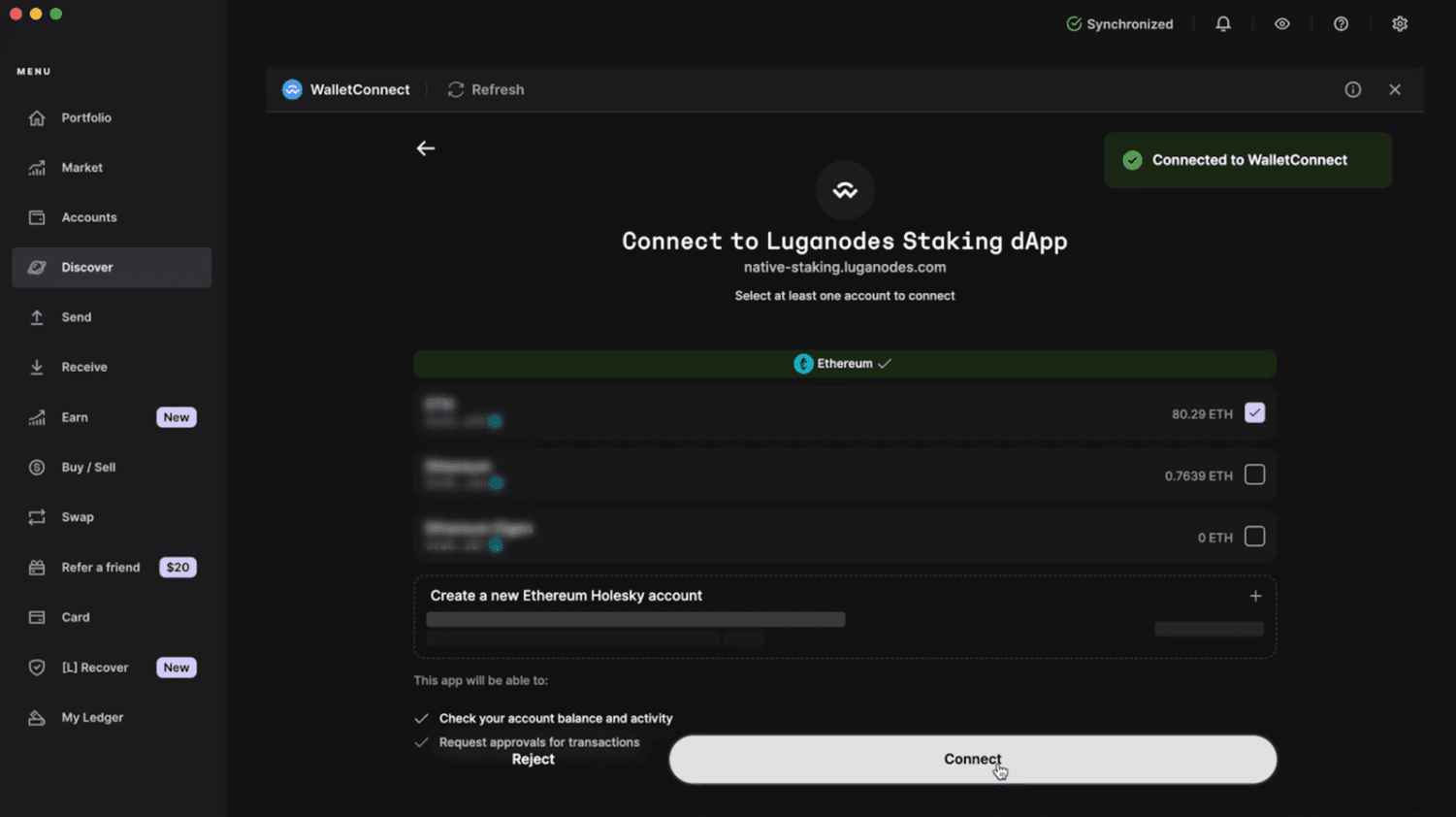
* Choose Ledger Live and follow the on-screen instructions to establish a connection. You can select from desktop, mobile, or browser options. Click on “Connect” in the Ledger Live app. After successfully connecting, proceed to the staking process.
#### Step 3: Stake ETH
* Navigate to the Enter ETH menu. Select the amount you wish to stake in multiples of 32 ETH. The interface will display important details, including the activation time, validator exit time, and estimated APR.
* Carefully review the withdrawal address and fees accrued. Once satisfied, check the box to accept the terms and conditions. Click on Stake to initiate the staking process.

#### Step 4: Confirm the Transaction
* A confirmation prompt will appear. Click Confirm to proceed.

* You’ll be redirected to Ledger Live to sign the transaction. Choose the network fee, confirm the details, and sign the transaction on your Ledger device. The transaction will then be processed.


#### Step 5: Verify and Track
* After the transaction is sent, the staking interface will display a success message. To verify your stake, click on the Portfolio button, where you’ll see your staked amount and status.

